How to Convert a Live Photo to MP4 and Keep the Audio
A Live Photo is great inside the Photos app, but the moment you send it to someone on Android, upload it to a website, or add it to a normal video project, it usually turns into a flat still image. The easiest fix is to convert the Live Photo to an MP4 video.
The part people often miss is audio. Live Photos can include a tiny bit of sound, and some export methods strip it away. If you want the clip to feel like the original moment - a laugh, a wave, a door closing, a bit of street noise - use a video export path that keeps audio.
Quick answer
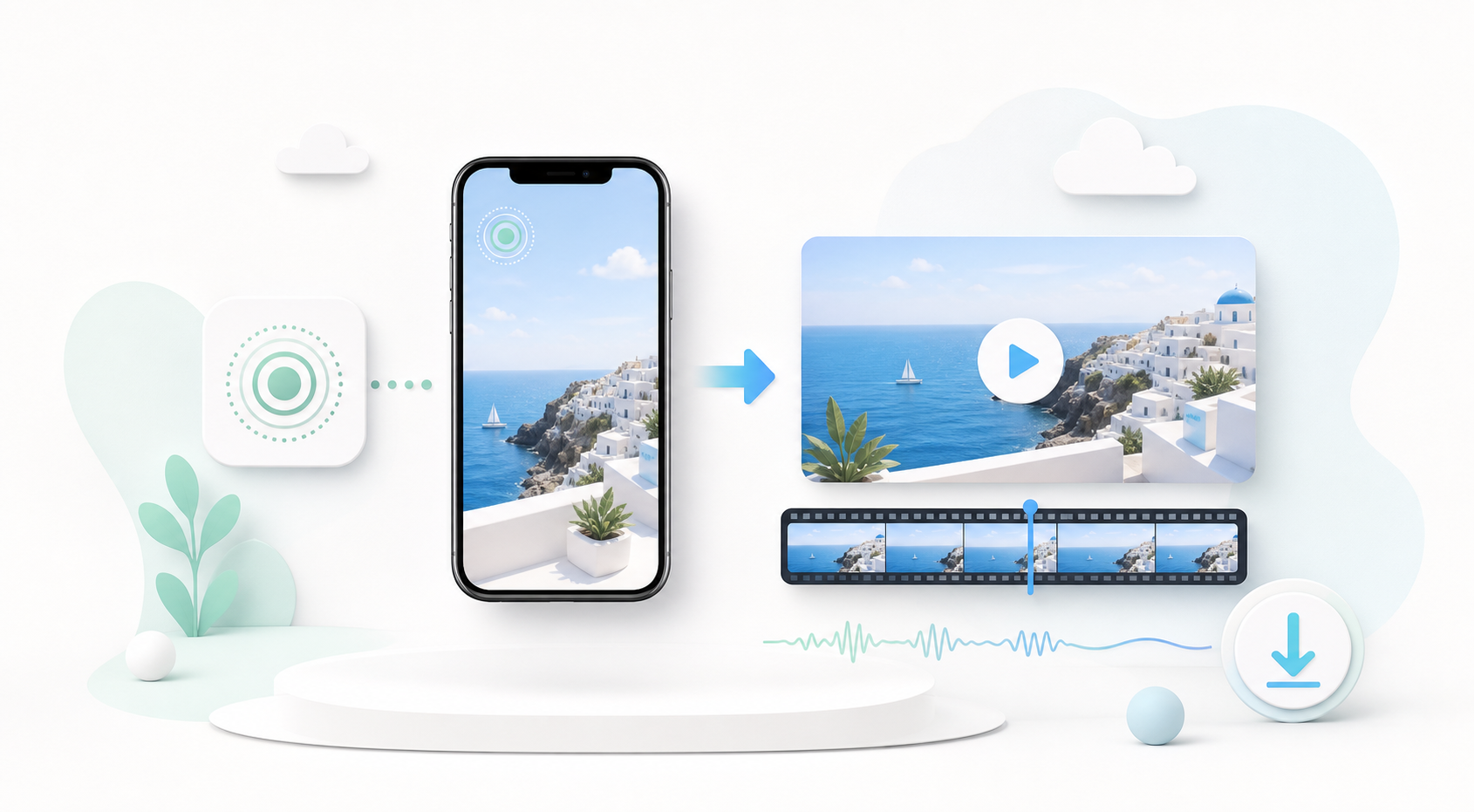
To convert a Live Photo to MP4 with audio, export the Live Photo as a video from your iPhone or use a browser converter that accepts the motion video part of the Live Photo. In LivePhotoTools, open the focused Live Photo to MP4 converter, choose your .livp, .mov, or saved video, keep the Audio setting on, and export as MP4.
If you are on iPhone and picking from Photos only gives you a still image, first use Photos > Share > Save as Video, then upload that saved video.
Why Live Photos do not behave like normal videos
A Live Photo is not one magic file. It is a high-quality still image paired with a short video clip, usually around three seconds long. iOS knows how to keep those two pieces together, but most apps do not.
That is why the same Live Photo can behave differently depending on how you share it:
- Messages between iPhones may keep the Live Photo behavior.
- Email or web uploads may keep only the still image.
- Social apps often turn it into a video or silently flatten it.
- Android devices usually need MP4 or GIF to show motion reliably.
If you want the safest shareable format, MP4 is the practical choice.
Method 1: Use the iPhone's built-in Save as Video option
If you just need a normal MP4/MOV video and you are working on your iPhone, start here.
- Open the Live Photo in the Photos app.
- Tap the share button.
- Scroll through the action list.
- Tap Save as Video.
- Check your Recents album for the exported video.
This is fast, free, and usually keeps the original motion and sound. The limitation is control: you do not get format settings, compression settings, or an easy way to batch process many files.
Method 2: Convert it in the browser
Use this when you want a downloadable MP4, need to work from desktop, or want to convert a .livp package or standalone .mov file.
- Open Live Photo to MP4.
- Choose your
.livp,.mov,.mp4, or motion photo file. - Set Output Format to MP4.
- Leave Audio set to Keep Audio.
- Click Convert and download the result.
The conversion runs inside your browser using FFmpeg compiled to WebAssembly. Your file is not uploaded to a server. That matters for personal photos because many "free online converters" process the file remotely, even when they do not make that obvious.
What if audio is missing?
If the exported video has no sound, one of these is usually the reason:
- The original Live Photo was muted in Photos.
- The app that shared the Live Photo stripped the audio track.
- You uploaded only the still image, not the motion video.
- The file came from a messaging app that compressed or flattened it.
Try going back to the original Live Photo in the iPhone Photos app and using Save as Video again. If you received the file from someone else, ask them to send it as a video or as the original Live Photo package rather than as a normal image.
MP4 or GIF: which should you choose?
Choose MP4 when you care about quality, audio, or sharing to most modern apps. Choose GIF only when you need something that loops silently and works in old contexts such as certain forums or email clients.
If you specifically want a silent loop, use the Live Photo to GIF converter. If you want the original sound and smoother motion, MP4 is the better format.
Privacy note
Live Photos are personal by nature. They often include faces, homes, kids, location clues, and background audio. A browser-based workflow is useful because it lets you convert without sending the original media to someone else's server. You can read the technical version in How LivePhotoTools Works.
The cleanest workflow
For most people, this is the path that causes the fewest surprises:
- If you are on iPhone, use Save as Video when possible.
- If you need control or are on desktop, use Live Photo to MP4.
- Export MP4 with audio kept.
- Share the MP4 anywhere: WhatsApp, Instagram, Android, email, or a video editor.
That gives you the motion, the sound, and a file format almost every device understands.