How to Make a World Cup Live Photo Wallpaper for iPhone
World Cup season is exactly when your camera roll starts filling up with tiny moments: a last-minute goal, a watch-party reaction, a flag wave outside the stadium, or that one clip your friend keeps replaying in the group chat.
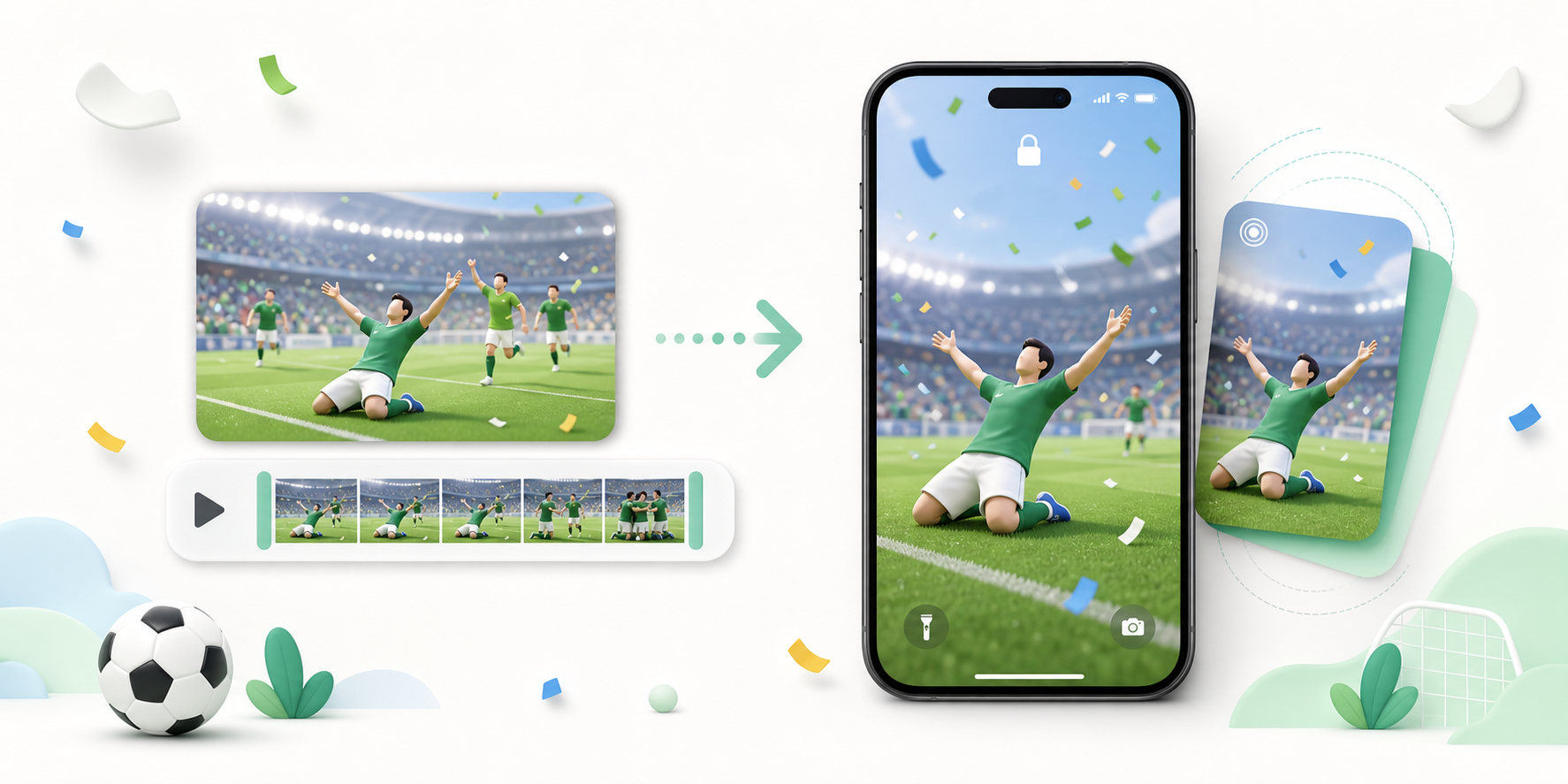
If you want one of those moments on your iPhone lock screen, the easiest path is to turn it into a short Live Photo wallpaper. Keep it simple: use a clean 3 to 5 second clip, crop it vertically, and make sure the main action does not sit under the clock.
Quick answer
To make a World Cup-style Live Photo wallpaper, start with a saved soccer clip or GIF, convert it with Video to Live Photo, MP4 to Live Photo, or GIF to Live Photo, then save it to your iPhone and set it as a lock-screen wallpaper.
Use your own clips or content you have permission to use. Do not use official broadcast footage in ways that violate the platform or rights holder's rules.
What makes a good matchday Live Photo wallpaper?
The best Live Photo wallpapers are not full highlight reels. They are short, readable moments:
- A celebration jump.
- A crowd reaction.
- A scarf or jersey wave.
- A quick pan across a watch-party table.
- A stadium light moment.
- A replay-style clip of your own kickabout.
If the clip needs explanation, it probably is too busy for a lock screen. The wallpaper should read in one glance.
Recommended settings
| Setting | Best choice | Why |
|---|---|---|
| Length | 3 to 5 seconds | Feels like a Live Photo, not a full video |
| Crop | 9:16 portrait | Fits the lock screen |
| Subject position | Lower half or center | Avoids the clock and widgets |
| Source | MP4 if possible | Better color and motion than GIF |
| Sound | Optional | Lock-screen motion is mostly visual |
If you only have a GIF, use GIF to Live Photo. If you have a video from your phone, TikTok save, or downloaded MP4, use MP4 to Live Photo instead.
Step-by-step: video or MP4 to Live Photo
- Save the clip you want to use.
- Open MP4 to Live Photo or Video to Live Photo.
- Upload the clip.
- Choose 9:16 if it is for your lock screen.
- Trim the best 3 to 5 seconds.
- Convert and save the result.
- Move it to your iPhone if you converted on desktop.
- Open Photos and set it as your wallpaper.
If the clip starts with a dead second before the action, trim it. A wallpaper should begin right where the energy starts.
Step-by-step: GIF to Live Photo
GIFs are fun for reactions, but they are usually lower quality than video. Still, they work well for simple loops.
- Save the GIF.
- Open GIF to Live Photo.
- Upload it.
- Keep the duration short.
- Convert and save.
For a cleaner result, use the original video version whenever you can. GIF compression can make grass, lights, and faces look rough on a large phone screen.
A small privacy note
Watch-party clips can include faces, apartment interiors, kids, and background conversations. LivePhotoTools runs conversion inside your browser, so you do not need to upload the original clip to a remote converter server. If you want the technical explanation, read How LivePhotoTools Works.
Final tip
Make two versions: one close crop for the lock screen, and one normal MP4 for sharing. Use Live Photo to Video when you want a shareable MP4, and use Live Photo creation tools when you want something that feels personal on your phone.